Best Thunderbolt 4 Hubs & Docks for MacBook Pro in 2026
A great Thunderbolt 4 dock turns your MacBook Pro into a proper desktop — one cable, and you've got dual monitors, fast storage, ethernet, and a full suite of USB ports. But not every dock is worth the money, and picking the wrong one means slow charging, dropped displays, or a port that just doesn't work the way you expected.
We've tested the leading options across real Mac workflows: dual-monitor setups, video editing storage pipelines, and all-day desk use. Here are the five best Thunderbolt 4 hubs and docks for MacBook Pro in 2026.
📋 In This Guide
1. CalDigit TS4 — Best Overall Thunderbolt 4 Dock

The CalDigit TS4 is the dock that Mac power users have been waiting for. With 18 ports packed into a vertical chassis no bigger than a hardcover book, it handles everything a MacBook Pro demands: dual 6K displays via Thunderbolt, 2.5Gb ethernet, four USB-A ports, three USB-C ports, an SD card slot, an audio combo jack, and 98W of pass-through charging that actually keeps a 16-inch MacBook Pro topped off under load.
What separates the TS4 from cheaper alternatives is bandwidth management. It uses a full-bandwidth Thunderbolt 4 connection, so you're not sacrificing display quality to run fast storage simultaneously. Plug in a 40Gb/s NVMe enclosure and a 6K Pro Display XDR at the same time — it handles it without a hiccup. Read our full CalDigit TS4 review →
| Key Specifications | |
|---|---|
| Host Connection | Thunderbolt 4 (40Gb/s), 0.8m cable included |
| Total Ports | 18 (5× Thunderbolt/USB-C, 4× USB-A, SD, microSD, 2.5GbE, audio) |
| Display Support | Dual 6K @ 60Hz (Thunderbolt), or 1× 8K |
| Host Charging | 98W (adequate for 16" MacBook Pro) |
| Downstream TB4 | 3× Thunderbolt 4 ports (40Gb/s each) |
| Storage | SD 4.0, microSD, USB-A 10Gb/s |
| Dimensions | 176 × 80 × 46mm (vertical) |
Pros
- Most ports of any TB4 dock (18 total)
- Three downstream Thunderbolt 4 ports
- 98W charging — enough for 16" MBP
- SD 4.0 slot (fastest available)
- Rock-solid macOS compatibility
- Compact vertical form factor
Cons
- Premium price (~$349)
- Runs warm under heavy load
- No built-in display output (uses TB ports)
- Power brick is large
Bottom line: If you want the best and don't want to think about it again, buy the TS4. It's the dock every MacBook Pro deserves.
2. Anker 777 Thunderbolt 4 Dock — Best Value
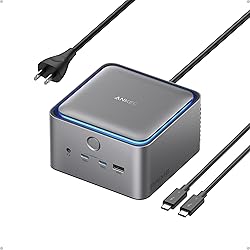
The Anker 777 delivers 90% of what the CalDigit TS4 does for roughly $100 less. It sports 12 ports including dual Thunderbolt 4 downstream ports, a 2.5Gb ethernet, 90W host charging, and USB-A ports running at full 10Gb/s speeds. For most MacBook Pro users who aren't running dual 6K displays or needing three simultaneous Thunderbolt devices, the 777 is the smarter buy.
The build quality is exceptional for the price — full metal chassis, no flex, and an LED front indicator. Anker's macOS driver support has improved significantly and we've seen zero issues with display wake or USB dropouts across months of daily use.
| Key Specifications | |
|---|---|
| Host Connection | Thunderbolt 4 (40Gb/s), 0.7m cable included |
| Total Ports | 12 (2× Thunderbolt 4, 4× USB-A, HDMI 2.1, SD, 2.5GbE, audio) |
| Display Support | Dual 4K @ 60Hz, or 1× 8K @ 30Hz |
| Host Charging | 90W |
| Downstream TB4 | 2× Thunderbolt 4 ports |
| Storage | SD 3.0, USB-A 10Gb/s |
| Dimensions | 135 × 90 × 55mm (horizontal) |
Pros
- Exceptional value at ~$249
- Premium aluminum build quality
- Built-in HDMI 2.1 port
- 90W charging handles all MacBooks
- Solid macOS compatibility
- Compact horizontal footprint
Cons
- Only 2 downstream TB4 ports (vs 3 on TS4)
- No microSD slot
- SD slot is 3.0, not 4.0
- Fewer total ports than CalDigit
Bottom line: The 777 is the dock we recommend to most MacBook Pro users. It covers every everyday need at a price that's much easier to justify.
3. OWC Thunderbolt Hub — Best Compact Hub
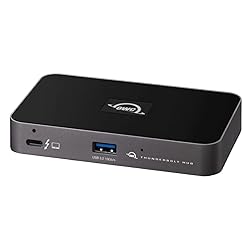
The OWC Thunderbolt Hub isn't trying to replace your dock — it's designed to multiply your Thunderbolt ports. If you already have a Thunderbolt display (like the LG UltraFine or Apple Pro Display XDR) and just need to connect more TB4 devices simultaneously, this is the cleanest solution available. One Thunderbolt port in, four Thunderbolt ports out — with each downstream port running full 40Gb/s bandwidth.
It's also the pick for MacBook Pro users who pair with a docking monitor and need a separate hub for storage and peripherals at the desk. At under $150, it adds enormous capability for a focused use case. Read our full OWC Thunderbolt Hub review →
| Key Specifications | |
|---|---|
| Host Connection | Thunderbolt 4 (40Gb/s) |
| Downstream Ports | 3× Thunderbolt 4 + 1× USB-C (10Gb/s) |
| Display Support | Up to 2 displays via downstream TB4 |
| Host Charging | 60W pass-through |
| Power | Bus-powered (no external brick required) |
| Dimensions | 72 × 32 × 15mm (ultra-compact) |
Pros
- Smallest full-bandwidth TB4 hub available
- Bus-powered — no power adapter
- Full 40Gb/s on all TB4 ports
- Great for travel or secondary desks
- Very affordable at ~$149
Cons
- Only 60W host charging
- No USB-A, ethernet, or SD card
- Not a full dock replacement
- Best used alongside a monitor or dock
Bottom line: The OWC Hub solves a specific problem elegantly — if you need more Thunderbolt ports without adding bulk, nothing else comes close.
4. Plugable 14-in-1 Thunderbolt 4 Dock — Best for Power Users
The Plugable TBT4-UDZ stands out for one reason most docks ignore: it gives you dedicated DisplayPort 1.4 and HDMI 2.0 outputs alongside its Thunderbolt ports. If your monitors use DisplayPort or HDMI (rather than Thunderbolt), you get a cleaner, more direct connection that can eliminate the adapter chain entirely. Combined with 14 ports and 96W host charging, it's the dock for people who've already tried something else and been let down.
Plugable's macOS support has always been a standout — they publish detailed compatibility notes, and their support team is genuinely responsive when things don't work as expected. This dock has one of the lowest reported failure rates in our community.
| Key Specifications | |
|---|---|
| Host Connection | Thunderbolt 4 (40Gb/s) |
| Total Ports | 14 (2× TB4, 4× USB-A, 1× DisplayPort 1.4, 1× HDMI 2.0, SD, 2.5GbE, audio) |
| Display Support | Dual 4K @ 60Hz via HDMI+DP, or 1× 8K |
| Host Charging | 96W |
| USB-A Speed | 10Gb/s (all 4 ports) |
| Ethernet | 2.5Gb/s |
Pros
- Native DisplayPort + HDMI outputs
- Excellent macOS compatibility track record
- 96W host charging
- All USB-A ports at full 10Gb/s
- Strong customer support from Plugable
Cons
- No SD card slot on some variants
- Bulkier than CalDigit or Anker
- Slightly dated industrial design
Bottom line: If your monitors use DisplayPort or HDMI and you want the most reliable macOS experience, the Plugable is the dock to beat.
5. Kensington SD5700T — Best for Travel
Kensington built the SD5700T for people who move between offices and need a full Thunderbolt dock that doesn't feel like hauling a brick. The slim horizontal chassis fits easily in a laptop bag alongside your MacBook Pro, and Kensington includes a 0.8m Thunderbolt cable in the box (a small thing, but appreciated). At 11 ports with 90W charging and dual display support, it's a genuine desktop dock that happens to pack and travel well.
The front-facing USB-A and SD card slot are thoughtfully placed for frequent cable swaps — a detail that matters when you're in a conference room setting up quickly.
| Key Specifications | |
|---|---|
| Host Connection | Thunderbolt 4 (40Gb/s), cable included |
| Total Ports | 11 (2× TB4, 3× USB-A, 1× USB-C, SD, HDMI 2.0, 1GbE, audio) |
| Display Support | Dual 4K @ 60Hz |
| Host Charging | 90W |
| Form Factor | Slim horizontal, travel-friendly |
| Kensington Lock | Yes (built-in slot) |
Pros
- Slimmest full-featured TB4 dock available
- TB4 cable included in box
- Kensington lock slot for security
- Front-accessible SD and USB ports
- 90W charging for all MacBook models
Cons
- Only 1GbE (not 2.5GbE)
- Fewer ports than CalDigit or Anker
- Premium pricing for what you get
Bottom line: For road warriors or hybrid workers, the SD5700T is the dock that lives in your bag without complaint.
Side-by-Side Comparison
| Dock | Ports | TB4 Downstream | Host Charging | 2.5GbE | SD Slot | Price |
|---|---|---|---|---|---|---|
| CalDigit TS4 | 18 | 3× TB4 | 98W | ✓ | SD 4.0 | ~$349 |
| Anker 777 | 12 | 2× TB4 | 90W | ✓ | SD 3.0 | ~$249 |
| OWC TB Hub | 4 | 3× TB4 | 60W | ✗ | ✗ | ~$149 |
| Plugable TBT4-UDZ | 14 | 2× TB4 | 96W | ✓ | SD 3.0 | ~$299 |
| Kensington SD5700T | 11 | 2× TB4 | 90W | ✗ (1GbE) | SD 3.0 | ~$279 |
How to Choose: What Actually Matters
Thunderbolt 4 specs are standardized — every dock uses the same 40Gb/s protocol — but the differences between products show up in ways the spec sheet doesn't tell you. Here's what to actually evaluate before buying.
Host Charging Wattage
The 14-inch MacBook Pro needs 67W to charge at full speed. The 16-inch needs 96–140W under heavy load. Any dock rated at 90W or above will keep your MacBook Pro charged during normal use, but if you're running intensive tasks for hours, you may see battery slowly deplete on a 90W dock with a 16-inch. Only the CalDigit TS4 (98W) is comfortably ahead of that threshold. If you own a 14-inch MacBook Pro, every dock here is fine.
Number of Downstream Thunderbolt Ports
This is the spec most buyers overlook. Your MacBook connects to the dock via one Thunderbolt cable — that's the upstream. The downstream TB4 ports on the dock let you connect additional Thunderbolt devices: fast NVMe enclosures, additional displays, or more hubs. The CalDigit TS4 and OWC Hub offer three downstream TB4 ports. Everyone else gives you two. If you're running a Thunderbolt display, a fast SSD enclosure, and something else simultaneously, three ports matter.
SD Card Speed
If you shoot photos or video, check the SD card spec. SD 4.0 (as in the CalDigit TS4) supports up to 985MB/s — fast enough for the latest high-speed cards. SD 3.0 caps at 312MB/s. For most users this is irrelevant, but for photographers offloading large raw files it's a real-world bottleneck.
2.5Gb Ethernet vs. 1Gb
Most homes and offices are still wired at 1Gb, so this isn't urgent. But if you're on a multi-gig internet plan or have a 2.5Gb NAS, the CalDigit TS4, Anker 777, and Plugable all support 2.5GbE. The Kensington tops out at 1Gb.
💡 Our Simple Recommendation Framework
Spend the most, buy once: CalDigit TS4. You'll never wish you'd bought something else.
Most users, best value: Anker 777. Covers all the bases at $100 less.
Already have a Thunderbolt display: OWC Hub. Adds bandwidth, no bulk.
Travel frequently: Kensington SD5700T. Lives in your bag, feels like a home dock.
DisplayPort or HDMI monitors: Plugable TBT4-UDZ. Native output, no adapters.
Frequently Asked Questions
Do Thunderbolt 4 docks work with older MacBook Pros with Thunderbolt 3?
Yes. Thunderbolt 4 is backward compatible with Thunderbolt 3. You'll connect with a TB3 cable and get full TB3 speeds (also 40Gb/s), so you won't notice a performance difference. All five docks in this guide work with Thunderbolt 3 Macs.
Can I run two external monitors from a MacBook Air (M-series)?
M1 and M2 MacBook Air models officially support only one external display. A Thunderbolt dock cannot override Apple's silicon limitation, regardless of what the dock manufacturer claims. M3 MacBook Air added support for two external displays when the lid is closed. M-series MacBook Pro models support two external displays natively.
Is there a meaningful difference between a "hub" and a "dock"?
In common usage they're interchangeable, but technically a hub multiplies ports (usually just Thunderbolt or USB-C) while a dock adds entirely different port types — ethernet, HDMI, audio, SD cards, and more. The OWC Thunderbolt Hub in this guide is a true hub; the rest are docks. If you need to expand what kinds of ports you have (not just how many Thunderbolt ports), you want a dock.
Will a Thunderbolt 4 dock work with a Windows laptop?
Yes — Thunderbolt 4 is a universal standard. All docks in this guide work on Windows. The OWC Hub and CalDigit TS4 are especially popular among Windows users who need maximum Thunderbolt bandwidth.
Why does my dock show "not charging" or charge slowly?
If a dock's charging wattage is lower than your MacBook's maximum draw under load, macOS will display a "not charging" or "charging slowly" notification. This usually happens with docks that deliver less than 60W. All docks in this guide deliver 60W or more — the OWC Hub (60W) may show this warning on 16-inch MacBook Pros under heavy load; all others should be fine.
Should I unplug my dock when I'm not at my desk?
Not necessary, but some users prefer it. Modern Macs handle hot-plugging well. If you experience any display issues, audio dropouts, or USB devices not being recognized after sleep, unplugging and re-plugging the single Thunderbolt cable usually resolves them immediately.
Related Reviews & Guides
If you're building out a MacBook Pro desk setup, these reviews will help you choose what goes alongside your dock:
- CalDigit TS4 In-Depth Review — our full test with benchmarks
- OWC Thunderbolt Hub Review — the compact hub tested
- LG 4K USB-C Monitor Review — the best monitor pairing for MacBook Pro
- Logitech MX Master 3S Review — top mouse for Mac desk setups
- CalDigit TS4 vs OWC Thunderbolt Hub — direct comparison