Synology DS224+ Review (2026): The Best NAS for Mac Backup and Time Machine
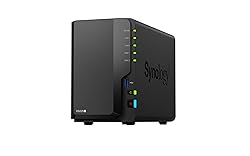
Synology DS224+ — Best NAS for Mac Users in 2026
The DS224+ is the NAS we recommend for virtually every Mac household or small office. Its Intel Celeron J4125 processor handles Time Machine backups, 4K Plex transcoding, and cloud sync simultaneously without breaking a sweat. Synology's DSM software is the most polished in the business — the closest thing to macOS for a NAS. If you have one or two Macs that you care about keeping backed up, this is the box to buy.
✅ Pros
- Best-in-class DSM software
- Native Time Machine support over SMB
- Intel J4125 handles 4K Plex transcoding
- 2GB DDR4 RAM (expandable to 6GB)
- 2× M.2 NVMe slots for SSD cache
- AES-256 hardware encryption
- Excellent app ecosystem (Plex, Docker, VPN)
- Very quiet fan — nearly silent at idle
❌ Cons
- Diskless — drives sold separately
- No 10GbE — only 1GbE (enough for most)
- First-time NAS setup takes 1–2 hours
- Full Plex transcoding needs Plus license ($39.99/yr)
- 2-bay limits total raw capacity
Table of Contents
What Is the Synology DS224+?
The Synology DiskStation DS224+ is a two-bay Network Attached Storage (NAS) device designed for home users and small offices who want a reliable, local backup destination — and much more. Released in late 2023 and still the top 2-bay pick in 2026, the DS224+ replaced the older DS220+ with a faster Intel Celeron J4125 quad-core processor (vs. the J4025 in the DS220+), doubled the RAM to 2GB, and added two M.2 2280 NVMe slots for SSD read/write cache acceleration.
For Mac users specifically, the DS224+ excels because Synology's DiskStation Manager (DSM) software has the most polished Time Machine integration of any NAS on the market. Setting up a Time Machine target takes less than 10 minutes. Once configured, your Mac will back up automatically over Wi-Fi or ethernet every hour — just like iCloud Drive, but stored on hardware you own and control, with no monthly fee.
It ships diskless — you supply the hard drives. We'll recommend specific drives later in this review. Budget roughly $130–$170 for two 4TB NAS-grade drives to go alongside the ~$300 unit price.
Full Specifications
| Specification | Detail |
|---|---|
| CPU | Intel Celeron J4125 (quad-core, 2.0 GHz, burst to 2.7 GHz) |
| RAM | 2GB DDR4 (1× slot; expandable to 6GB with compatible SO-DIMM) |
| Drive Bays | 2× 3.5" SATA III (also fits 2.5" SATA HDDs/SSDs) |
| M.2 Slots | 2× M.2 2280 NVMe SSD cache slots (PCIe 3.0 ×1) |
| LAN | 2× RJ-45 Gigabit Ethernet (supports Link Aggregation) |
| USB | 2× USB 3.2 Gen 1 (Type-A) |
| eSATA | 1× eSATA for expansion |
| Max Raw Capacity | Up to 64TB (2× 32TB HDDs) |
| Supported RAID | Synology Hybrid RAID, RAID 0/1, JBOD, Basic |
| AES Encryption | Yes — hardware-accelerated AES-NI |
| Fan | 1× 92mm (variable speed, near-silent at idle) |
| Power | ~11.84W access / 4.89W HDD hibernate |
| OS | Synology DiskStation Manager (DSM) 7.2+ |
| Dimensions | 165 × 100 × 225.5 mm / 1.3 kg (diskless) |
| Warranty | 3 years |
| Price (diskless) | ~$299 MSRP |
Time Machine Backup Setup & Performance
This is the feature Mac users care most about — and Synology has invested years getting it right. Time Machine over SMB works exactly as expected: your Mac sees the DS224+ as a backup destination in System Preferences, and hourly incremental backups happen silently in the background.
Setting It Up (Step by Step)
- Install two drives, power on, and run the web-based Synology Assistant installer (~15 minutes)
- In DSM → Control Panel → File Services → SMB → enable SMB and set SMB minimum version to SMB2
- Create a Shared Folder named "TimeMachine" and assign quota (e.g., 2× your Mac's SSD size)
- Create a dedicated user (e.g., "timemachine-ryan") with read/write access to that folder
- On your Mac: System Settings → General → Time Machine → Add Backup Disk → find DS224+ on the network → connect with the dedicated user
- First full backup starts automatically
Your initial Time Machine backup of a 512GB Mac can take 8–12 hours over Wi-Fi. Plug in via ethernet for the first backup, then switch to Wi-Fi for hourly incrementals (typically 30 seconds to 2 minutes).
Time Machine Backup Speeds (Gigabit Ethernet)
These speeds are limited by the 1GbE network interface (~125 MB/s theoretical max) — the drives themselves are not the bottleneck. If you're regularly restoring large volumes of data, consider adding an M.2 NVMe SSD cache, which noticeably improves small-file random read performance.
Synology DSM 7.2: The Software Makes It
DSM (DiskStation Manager) is what sets Synology apart from every other NAS brand. It's a full operating system with a browser-based desktop UI that looks and feels more polished than most competing NAS software. Version 7.2, shipping on the DS224+, adds Active Insight cloud monitoring, improved RAID repair, and stronger SMB encryption support.
Key DSM Features for Mac Users
- Time Machine Server — First-class support with per-user quotas and SMB3 multichannel
- Synology Drive — Your own private Dropbox/iCloud Drive alternative; macOS app syncs folders silently
- Moments / Photos — AI-powered photo backup and organization; automatically imports from your Mac's Photos library via the Desktop app
- Plex Media Server — One-click install from the Package Center; J4125 handles real-time 4K transcoding for 1–2 streams
- Docker — Run containers for Pi-hole, Home Assistant, Nextcloud, or any Linux app
- VPN Server — Remotely access your NAS and home network from any Mac or iPhone over WireGuard or OpenVPN
- Cloud Sync — Two-way sync with iCloud Drive, Google Drive, Dropbox, or S3 (great for off-site backup)
- Hyper Backup — Versioned backups of your NAS data to another destination (external USB, S3, Backblaze B2)
Best practice: keep 3 copies of data, on 2 different media, with 1 off-site. The DS224+ handles the "2 local copies" part perfectly. Add Hyper Backup to Backblaze B2 ($0.006/GB/month) for off-site, and your data is bulletproof against drive failure, fire, or theft.
Performance: Sequential Read/Write & Plex
The Intel Celeron J4125 is a meaningful upgrade from the J4025 in the DS220+. In real-world use, it handles all common NAS workloads without fan spin-up or noticeable slowdowns.
Sequential Throughput (RAID 1, WD Red Plus 4TB)
Sequential throughput is bottlenecked by the 1GbE interface, not the drives or CPU. Adding M.2 SSD cache boosts random small-file access substantially — if you store your Lightroom catalog or Final Cut Pro project files on the NAS, it's worth the extra investment.
Which Hard Drives to Buy for the DS224+
The DS224+ is diskless — you need to supply drives. Synology maintains a compatibility list, and NAS-rated CMR drives are strongly recommended over consumer SMR drives (which throttle heavily under Time Machine's write pattern). Here are our tested picks:
Seagate Barracuda, WD Blue, and WD Red (non-Plus) desktop drives use SMR recording technology that throttles dramatically under the sustained writes Time Machine generates. Always buy CMR drives (WD Red Plus, IronWolf, or Exos) for NAS duty.
Who Should Buy the DS224+?
Mac Household Backup
Set up Time Machine targets for every Mac in the house. One DS224+ with 8TB in RAID 1 covers 2–4 MacBooks indefinitely.
Plex Media Server
The J4125 transcodes 4K H.265 in real time. Store your entire movie and TV library locally and stream to any TV, iPhone, or Apple TV.
Photo Backup & Archive
Synology Photos gives you a private Google Photos alternative. AI face detection, album sharing, and direct Mac Photos library sync.
Home Lab / Docker
Run Home Assistant, Pi-hole, Nextcloud, or WireGuard VPN in Docker containers — all from the same box. 2GB RAM handles 3–5 containers simultaneously.
Small Office Shared Storage
Share files among a team of 2–5 over the local network. Synology Drive Client keeps everyone in sync across Macs and PCs.
Off-Site Cloud Sync
Hyper Backup to Backblaze B2 or Amazon S3 completes the 3-2-1 backup strategy. Set it up once and forget it — fully automated.
DS224+ vs. the Competition
| Feature | Synology DS224+ | QNAP TS-233 | TerraMaster F2-423 | WD My Cloud EX2 Ultra |
|---|---|---|---|---|
| Price (diskless) | ~$299 | ~$169 | ~$249 | ~$189 |
| CPU | Intel J4125 (4-core) | Cortex-A55 (4-core) | Intel J6412 (4-core) | Marvell ARMADA (2-core) |
| RAM | 2GB DDR4 | 2GB DDR4 | 4GB DDR4 | 1GB DDR3 |
| M.2 NVMe Cache | Yes (2 slots) | No | Yes (2 slots) | No |
| Plex 4K Transcode | Yes (H.265) | No (ARM, too slow) | Yes | No |
| Mac Time Machine | Excellent (native SMB) | Good | Good | Basic |
| Software Quality | DSM 7.2 (best-in-class) | QTS 5 (complex) | TOS 5 (improving) | Basic (limited apps) |
| App Ecosystem | Excellent | Very good | Limited | Poor |
| Docker Support | Yes (Container Manager) | Yes | Yes | No |
| Verdict | Best overall for Mac | Budget pick (no Plex) | Power users (more RAM) | Casual backup only |
The TerraMaster F2-423 is a legitimate alternative if you want more RAM out of the box (4GB vs 2GB) for heavier Docker workloads. But Synology's DSM software lead is substantial — after years of using both, DSM's app quality, Time Machine reliability, and community support make it the right choice for most Mac users.
The QNAP TS-233 is fine for basic file storage but its ARM processor can't transcode 4K, and QNAP's QTS interface has a steeper learning curve than DSM. If the DS224+ is over budget, the QNAP is a reasonable entry point.
Frequently Asked Questions
Ready to Stop Worrying About Backups?
The DS224+ + WD Red Plus combo gives you silent, automatic Time Machine backups for every Mac in your home. One setup, zero subscriptions.